How to connect Claude to your ArvoDocs QMS in 60 seconds
Step-by-step setup guide for connecting Claude to ArvoDocs via the Model Context Protocol. Screenshots, exact URLs, and what to expect on each consent screen — free on every plan.
If you've been on the fence about connecting an AI assistant to your quality system, here's the short story: it takes about a minute, you don't need to write any code, and ArvoDocs is free on the Starter plan. This walkthrough gets you from "not connected" to "Claude is reading my documents and drafting my SOPs" with screenshots at every step.
The same flow works on every ArvoDocs plan and any Claude plan that supports custom connectors (Pro, Team, Enterprise, or Max). If you'd rather use Claude Desktop, Claude Code, Cursor, or ChatGPT, the static-token path at the bottom of this post works for all of those.
What you'll need
- • An ArvoDocs account. Free at app.arvodocs.com/signup — any plan tier works.
- • Admin role on the ArvoDocs tenant you want to connect.
- • A Claude.ai account on a plan that supports custom connectors (Pro, Team, Enterprise, Max).
- • The server URL:
https://app.arvodocs.com/mcp/v1
That's the entire prerequisite list. No tokens to copy and paste, no config files to edit. Claude.ai's OAuth flow handles the auth automatically.
Step 1 — Open Claude's connector settings
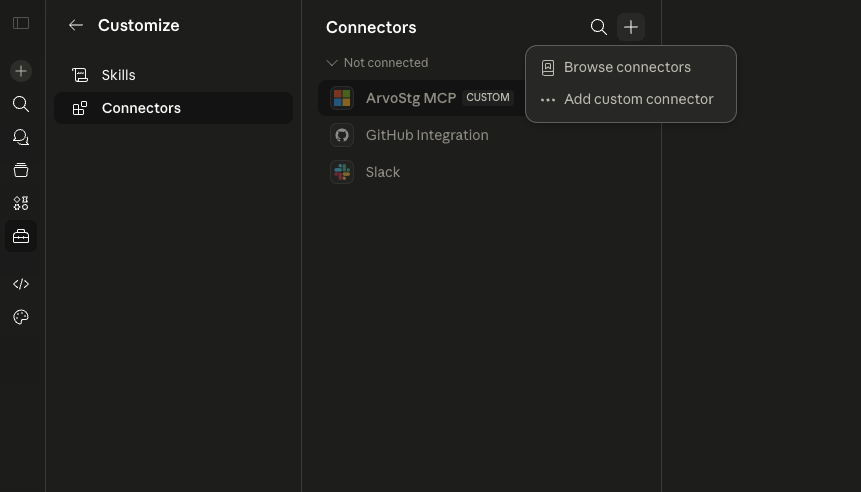
In Claude.ai, open the side panel and go to Customize → Connectors. Click the + button in the top-right of the Connectors panel and choose Add custom connector.
Step 2 — Paste the ArvoDocs server URL
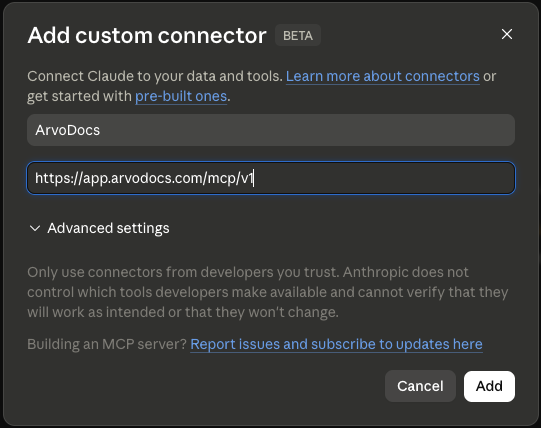
In the "Add custom connector" dialog, fill in:
- • Name:
ArvoDocs(whatever you want — this is just the label that shows in your connector list) - • URL:
https://app.arvodocs.com/mcp/v1
Leave "Advanced settings" alone — the defaults are correct. Click Add.
Step 3 — Click "Connect" to start the OAuth handshake
Claude.ai will discover the OAuth metadata, self-register as an OAuth client (RFC 7591 Dynamic Client Registration), and present you with a "not connected yet" page. Click Connect.
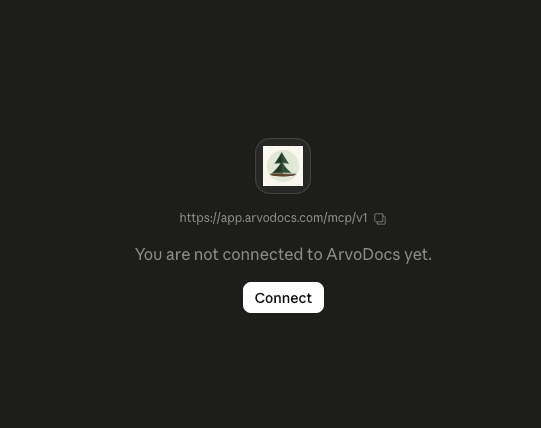
This pops a new browser window that takes you to ArvoDocs. If you weren't already logged in, you'll see the ArvoDocs login first — sign in as the admin user of the tenant you want to connect.
Step 4 — Authorize external access on ArvoDocs
Now you're on ArvoDocs' consent screen. Read what Claude is asking for:
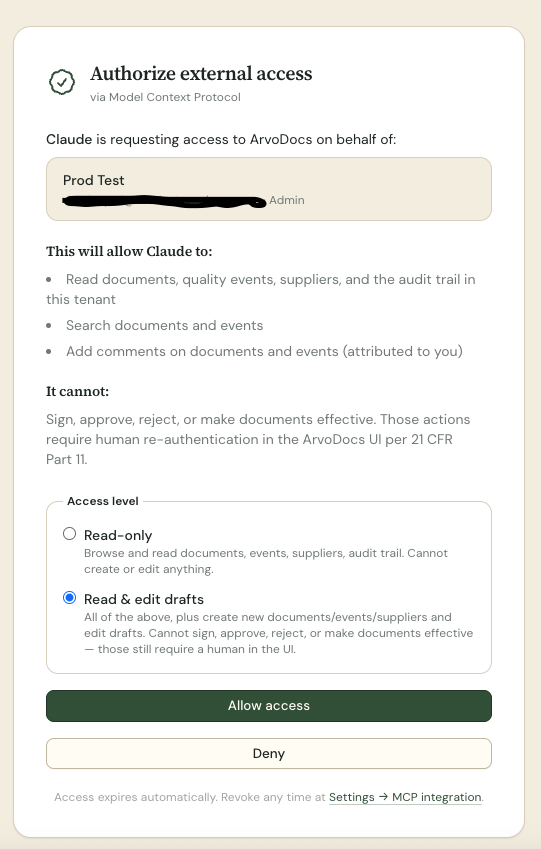
What Claude will get:
- • Read documents, quality events, suppliers, and the audit trail in your tenant
- • Search documents and events
- • Add comments to documents and events (attributed to you)
What it cannot do — even at the highest scope — is signing, approving, rejecting, submitting-for-review, or making documents effective. Those require a human in the UI with password re-authentication, per 21 CFR Part 11.
Pick your access level:
- • Read-only — for analysts, internal-audit prep, document discovery. Claude can browse and read everything but can't create or edit anything.
- • Read & edit drafts — adds the ability to create new documents/events/suppliers and edit drafts. Still can't sign/approve.
Click Allow access. The window closes and bounces you back to Claude.
Step 5 — Confirm the 23 tools are wired up
Back in Claude.ai, the ArvoDocs connector is now connected. You'll see the tool-permissions panel with 23 tools listed.
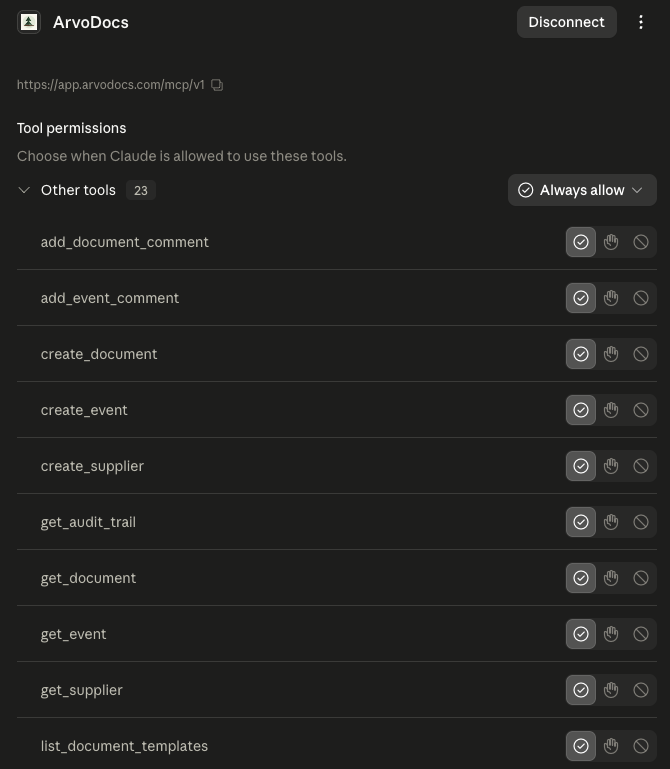
The 23 tools cover the full read + draft surface:
- • Browse: list_documents, list_events, list_suppliers, list_document_templates, list_event_templates, list_users, list_training_assignments
- • Read: get_document, get_event, get_supplier, get_audit_trail
- • Search: search_documents, search_events
- • Draft (Read & edit scope only): create_document, update_document_section, update_document_compliance_fields, create_event, start_event, update_event_field_value, create_supplier, update_supplier
- • Comment (always allowed): add_document_comment, add_event_comment
Verify the connection works
Open a fresh Claude conversation and type:
List the document templates available in my ArvoDocs tenant.
If you see your tenant's templates come back (SOPs, manuals, work instructions, etc.), you're done. Claude is connected and reading from your QMS in real time.
What to try next
Once you're connected, the prompts that pay off fastest:
- • "Find every CAPA opened in the last 12 months and tell me which closed without a documented root cause."
- • "Walk through every document referenced by our Quality Manual. Tell me which aren't in their effective version or are past their periodic review."
- • "Draft an SOP for incoming inspection of injection-molded plastic components, ISO 13485-aligned."
- • "For SOP-23, tell me who's been trained on the current revision and who's still on the previous one."
The ISO 13485 internal-audits walkthrough has a full library of prompts organized by clause, and the AI in your eQMS deep-dive covers seven concrete use cases.
Claude Desktop, Claude Code, Cursor, ChatGPT — the static-token path
The OAuth flow above is specific to claude.ai's web connector. For desktop / CLI / IDE clients, you generate a static API token in ArvoDocs and paste it into the client config.
- 1. In ArvoDocs, go to Settings → MCP integration. Click Generate token. Pick Read-only or Read & edit drafts. Copy the token (it's only shown once).
- 2. For Claude Desktop, edit
~/Library/Application Support/Claude/claude_desktop_config.json(macOS) or%APPDATA%\Claude\claude_desktop_config.json(Windows). Add:
{
  "mcpServers": {
    "arvodocs": {
      "url": "https://app.arvodocs.com/mcp/v1",
      "headers": {
        "Authorization": "Bearer arvo_mcp_…paste_your_token_here…"
      }
    }
  }
}
Restart Claude Desktop. The connector should show up in the hammer icon at the bottom of the chat input.
For Claude Code: claude mcp add arvodocs --transport http --url https://app.arvodocs.com/mcp/v1 --header "Authorization: Bearer arvo_mcp_…".
For Cursor, Continue, Zed: same pattern — point the client at the URL and add the Authorization header. The exact config UI varies; check each tool's MCP docs.
For ChatGPT on Team/Enterprise/Pro: in ChatGPT Settings → Connectors → Add custom connector, paste the same URL. ChatGPT supports the same OAuth flow as claude.ai, so no token needed.
Troubleshooting
"You are not connected to ArvoDocs yet" never updates. Click the Connect button — that triggers the OAuth flow. If the popup is blocked, allow popups from claude.ai and retry.
The consent screen says "MCP integration is available on the Growth plan." That copy was from when MCP was tier-gated. The gate has been removed; if you see that error, hard-refresh the page. If it persists, your tenant may be cached on an older revision — sign out and back in.
"Connector failed to add" with an OAuth error. Make sure you're an admin on the ArvoDocs tenant. The consent screen requires admin role.
Claude says "I don't have access to any tools." The connector probably didn't finish setting up. Disconnect it in Claude.ai (Settings → Connectors → ArvoDocs → … → Disconnect) and redo Step 1.
Connect Claude to your QMS in under a minute.
Free Starter plan. ISO 13485 compliance pack in one click. AI integration on every plan — no upsell, no credit card.
Start free →Frequently asked questions
Do I need a paid Claude plan to connect to ArvoDocs?
You need a Claude plan that supports custom connectors — currently Claude Pro, Team, Enterprise, or Max. Connectors aren't available on the free Claude tier yet. On the ArvoDocs side, any tier works (including the free Starter plan).
Do I need a paid ArvoDocs plan to use the MCP integration?
No. MCP integration is included on every ArvoDocs plan, including the free Starter tier. Sign up at app.arvodocs.com/signup, deploy a compliance pack, and connect Claude — total time about ten minutes, zero credit card.
Is the OAuth flow secure? What does Claude actually get access to?
ArvoDocs uses OAuth 2.1 with PKCE-S256 — Claude.ai self-registers as a public OAuth client, gets a short-lived JWT (15 minutes) bound to your tenant, and refreshes it on rotating refresh tokens (90 days, single-use). On the consent screen you pick Read-only or Read & edit drafts. Either way, Claude cannot sign, approve, reject, submit-for-review, or make documents effective — those still require a human in the UI with password re-authentication per 21 CFR Part 11. Every MCP call lands in your tenant's tamper-evident audit trail.
Can I revoke access later?
Yes, from either side. In Claude.ai: Settings → Connectors → ArvoDocs → Disconnect. In ArvoDocs: Settings → MCP integration → Revoke on the listed token. Either disables the connection immediately.
What if I'm using Claude Desktop or Claude Code instead of claude.ai?
Both work too — Claude Desktop and Claude Code use static API tokens instead of OAuth. Generate one in ArvoDocs Settings → MCP integration, paste it into your client's MCP server config as an Authorization: Bearer header, restart the client. The same 23 tools are available. Same applies to Cursor, Continue, Zed, or any other MCP-aware client.